
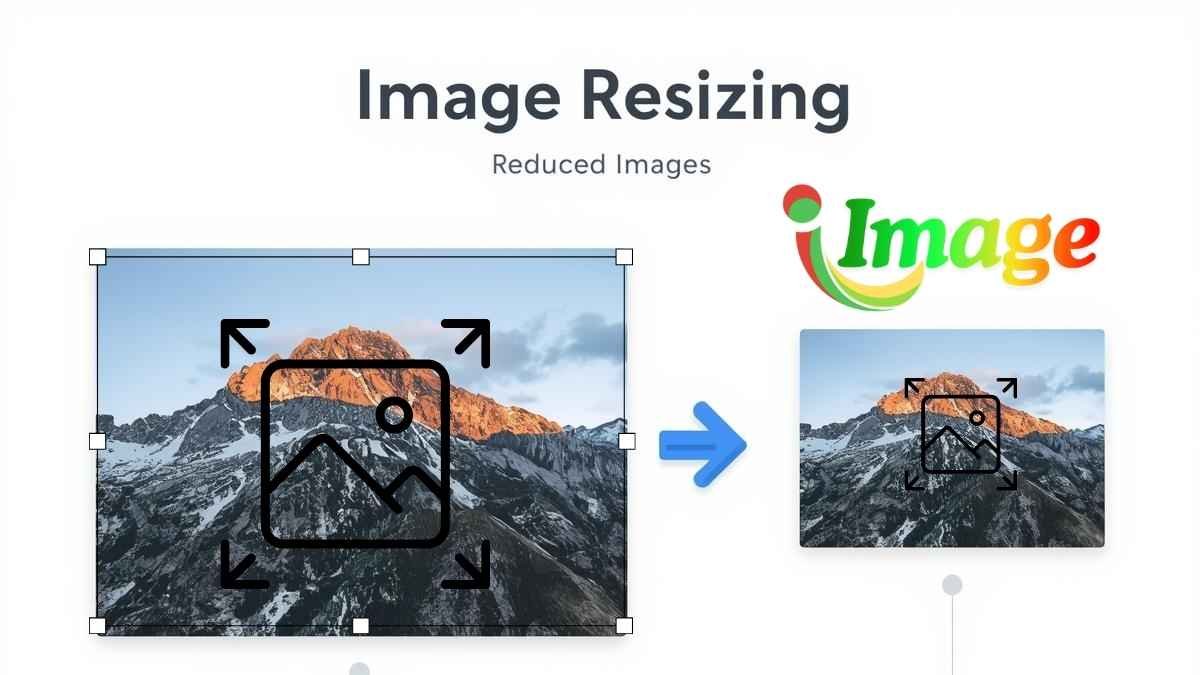
In today’s digital landscape, images play a crucial role in websites, applications, social media, and digital communication. However, raw images are often too large in size or unsuitable in dimensions for specific platforms. This is where an Image Resizer becomes essential. It is a fundamental tool used by developers, designers, and everyday users to optimize images efficiently without compromising usability.
What is an Image Resizer?
An Image Resizer is a software tool or application that adjusts the dimensions (width and height) of an image. The goal is to make the image suitable for a specific purpose, such as web display, mobile viewing, email sharing, or printing.
Resizing an image can serve multiple objectives:
-
Reducing file size for faster loading
-
Adjusting dimensions to meet platform requirements
-
Improving performance of websites and applications
-
Optimizing storage usage
Image resizers are available in various forms, including:
-
Online tools (web-based resizers)
-
Desktop software (e.g., design tools)
-
Mobile applications
-
Built-in features in operating systems
How Does an Image Resizer Work?
Image resizing is not just about stretching or shrinking an image. It involves mathematical and algorithmic processes to maintain visual quality as much as possible. Below are the key mechanisms involved:
1. Pixel-Based Transformation
An image is composed of tiny units called pixels. When resizing:
-
Downscaling (reducing size): The tool removes pixels
-
Upscaling (increasing size): The tool adds new pixels
This process directly affects image clarity and detail.
2. Interpolation Techniques
When pixels are added or removed, the resizer uses interpolation algorithms to estimate how the new image should look. These algorithms determine pixel color and intensity based on surrounding pixels.
Common interpolation methods include:
-
Nearest Neighbor: Fast but lower quality
-
Bilinear Interpolation: Balanced between speed and quality
-
Bicubic Interpolation: Higher quality with smoother results
Advanced tools may also use AI-based upscaling for better results.
3. Aspect Ratio Preservation
Aspect ratio refers to the proportional relationship between width and height. A good image resizer maintains this ratio to prevent distortion.
For example:
-
Original: 1920 × 1080 (16:9)
-
Resized correctly: 1280 × 720
-
Incorrect resize: 1280 × 800 (image appears stretched)
Most modern tools include an option to lock aspect ratio during resizing.
4. File Size Optimization
Resizing often reduces the overall file size of an image. This is especially important for:
-
Faster website loading times
-
Better user experience
-
Reduced bandwidth usage
Smaller images are more efficient for web and mobile environments.
5. Compression Integration
Many image resizers also include compression techniques, which:
-
Remove unnecessary metadata
-
Reduce image quality slightly (if needed)
-
Further decrease file size
Compression can be lossless (no quality loss) or lossy (slight quality reduction).
Practical Applications of Image Resizers
Image resizers are widely used across industries and daily tasks, such as:
-
Web development and blogging
-
Social media content creation
-
E-commerce product image optimization
-
Email attachments
-
Mobile app performance optimization
-
Printing and graphic design
Conclusion
An Image Resizer is a powerful and essential tool for managing digital images effectively. By adjusting dimensions, optimizing file size, and maintaining visual quality through advanced algorithms, it ensures that images are both functional and efficient for their intended use. Understanding how image resizing works allows users to make better decisions when preparing images for different platforms and purposes.
Frequently Asked Questions (FAQ) – Image Resizer
1. What is the main purpose of an image resizer?
The primary purpose of an image resizer is to adjust the dimensions (width and height) of an image so it fits specific requirements such as websites, social media platforms, or email attachments, while maintaining acceptable quality.
2. Does resizing an image reduce its quality?
It depends on how the image is resized:
-
Downscaling (reducing size): Usually maintains good quality
-
Upscaling (increasing size): Can reduce quality and cause blur or pixelation
Using advanced algorithms like bicubic or AI-based resizing can help preserve quality.
3. What is the difference between resizing and compressing an image?
-
Resizing: Changes image dimensions (e.g., 2000×1500 → 800×600)
-
Compression: Reduces file size without necessarily changing dimensions
Both are often used together for optimization.
4. What is aspect ratio, and why is it important?
Aspect ratio is the proportion of width to height (e.g., 16:9).
Maintaining the aspect ratio ensures the image does not look stretched or distorted after resizing.
5. Can I increase image size without losing quality?
Increasing image size (upscaling) usually leads to quality loss. However, modern tools using AI upscaling can improve results and reduce visible distortion.
6. Which image formats work best with resizers?
Common supported formats include:
-
JPEG (JPG)
-
PNG
-
WebP
-
GIF
Each format has different use cases depending on quality and transparency needs.
7. Why should I resize images for websites?
Resizing images for websites helps:
-
Improve page loading speed
-
Enhance user experience
-
Reduce bandwidth usage
-
Improve SEO rankings
8. What is the ideal image size for web use?
There is no single ideal size, but commonly:
-
Blog images: 800–1200 px width
-
Thumbnails: 150–300 px
-
Full-width banners: 1920 px
It depends on your website design and layout.
9. Are online image resizers safe to use?
Most popular tools are safe, but you should:
-
Avoid uploading sensitive images
-
Use trusted websites
-
Check privacy policies
10. Can I resize multiple images at once?
Yes, many tools offer batch resizing, allowing you to resize multiple images simultaneously, which saves time and effort.